Configuring Checks
In TheStrayCat, a Check represents a single service you want to monitor. For example, when monitoring cron jobs, you would create a separate check for each cron job you wish to monitor. TheStrayCat pricing plans are structured primarily around how many checks you can have in your account. You can create checks in the TheStrayCat web interface or via Management API.
Name, Tags, Description
Describe each check using an optional name, slug, tags, and description fields.
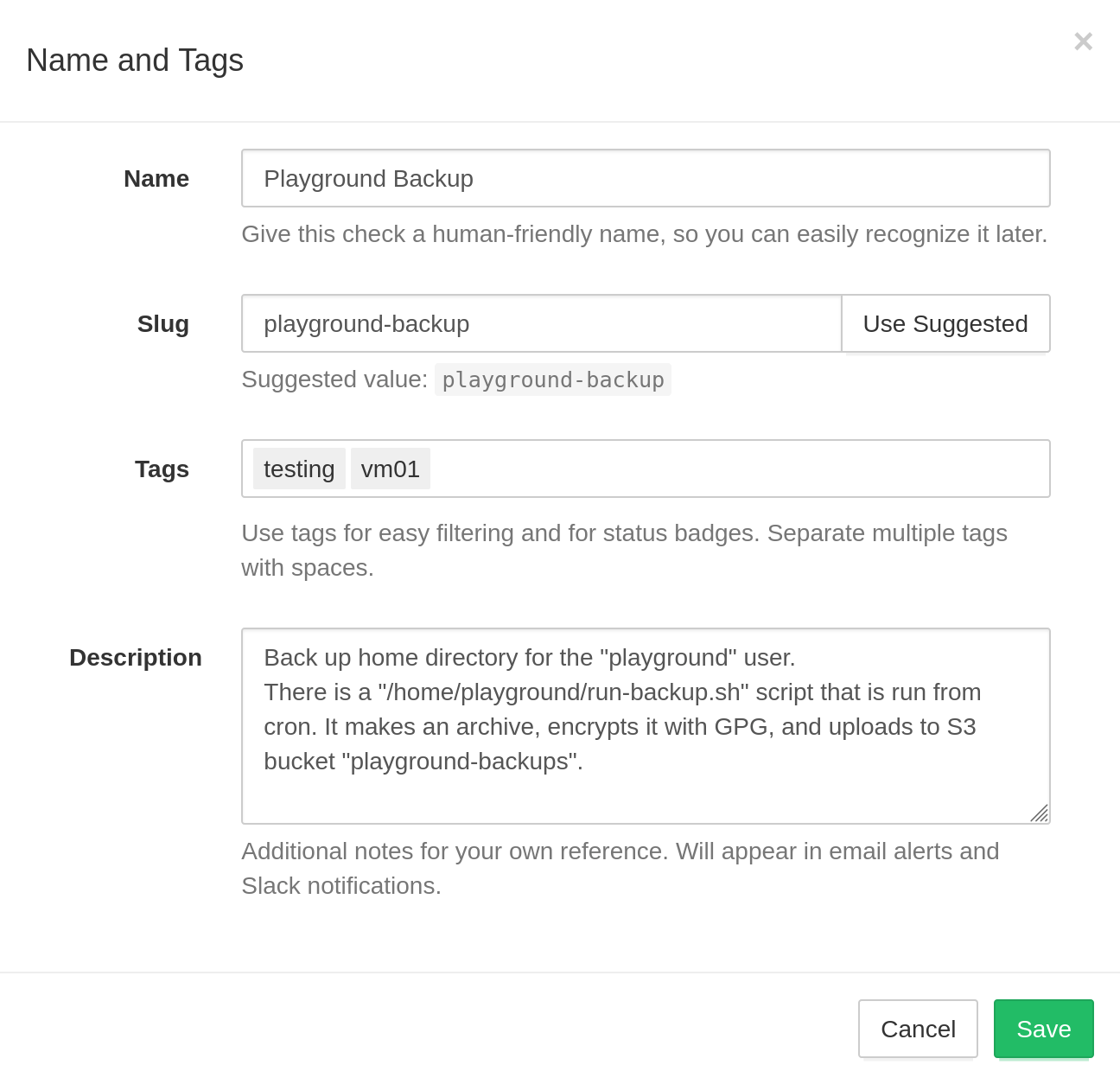
- Name: names are optional, but setting them is a good idea. Good naming becomes especially important as you add more checks to the account. TheStrayCat will display check names in the web interface, email reports, and notifications.
- Slug: URL-friendly identifier used in slug-based ping URLs
(an alternative to the default UUID-based ping URLs). The slug should only contain the
following characters:
a-z,0-9, hyphens, and underscores. If you don't plan to use slug-based ping URLs, you can leave the slug field empty. - Tags: a space-separated list of optional labels. Use tags to organize and group
checks within a project. You can tag checks by the environment
(
prod,staging,dev, etc.), by role (www,db,worker, etc.), or by using any other system. - Description: a free-form text field with any related information for your team or your future self. Describe the cron job's role, who set it up, what to do in case of failures, and where to look for additional information.
Simple Schedules
TheStrayCat supports three types of schedules: Simple, Cron, and OnCalendar. Use Simple schedules for monitoring processes that you expect to run at relatively regular intervals: once an hour, once a day, once a week, etc.
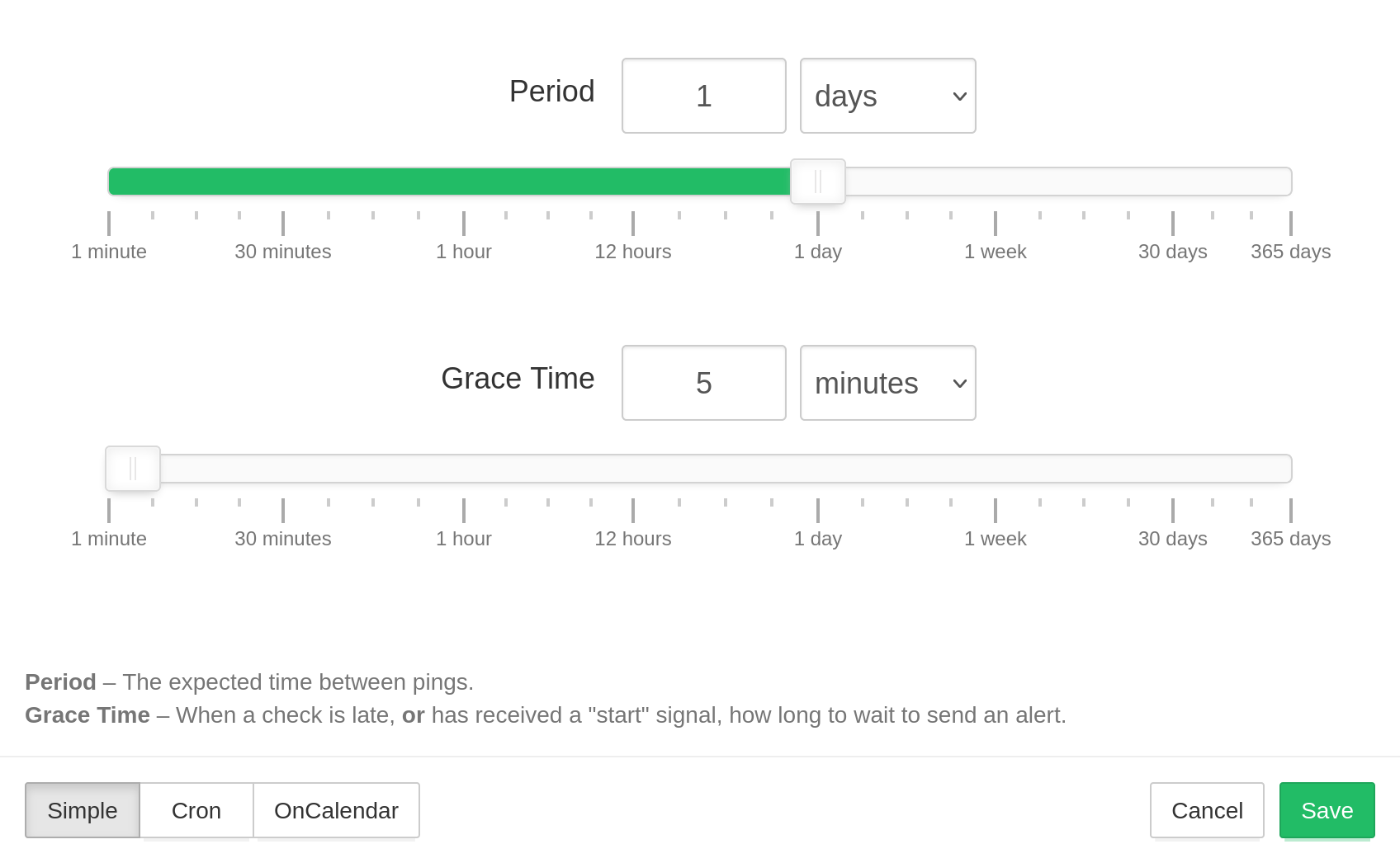
For the simple schedules, you can configure two parameters, Period and Grace Time.
- Period is the expected time between pings.
- Grace Time is the additional time to wait before sending an alert when a check is late. Use this parameter to account for minor, expected deviations in job execution times.
Note: if you use the "start" signal to measure job run times, then Grace Time also specifies the maximum allowed time gap between "start" and "success" signals. Whenever TheStrayCat receives a "start" signal, it expects a subsequent "success" signal within Grace Time. If the success signal does not arrive within the configured Grace Time, TheStrayCat will mark the check as failed and send out alerts.
Cron Schedules
Use "Cron" for monitoring cron jobs and other processes with more complex schedules. This monitoring mode ensures that jobs run at the correct time and not just at the correct time intervals.
See Cron syntax cheatsheet for cron expression syntax examples. See crontab(5) man page for complete cron syntax reference.
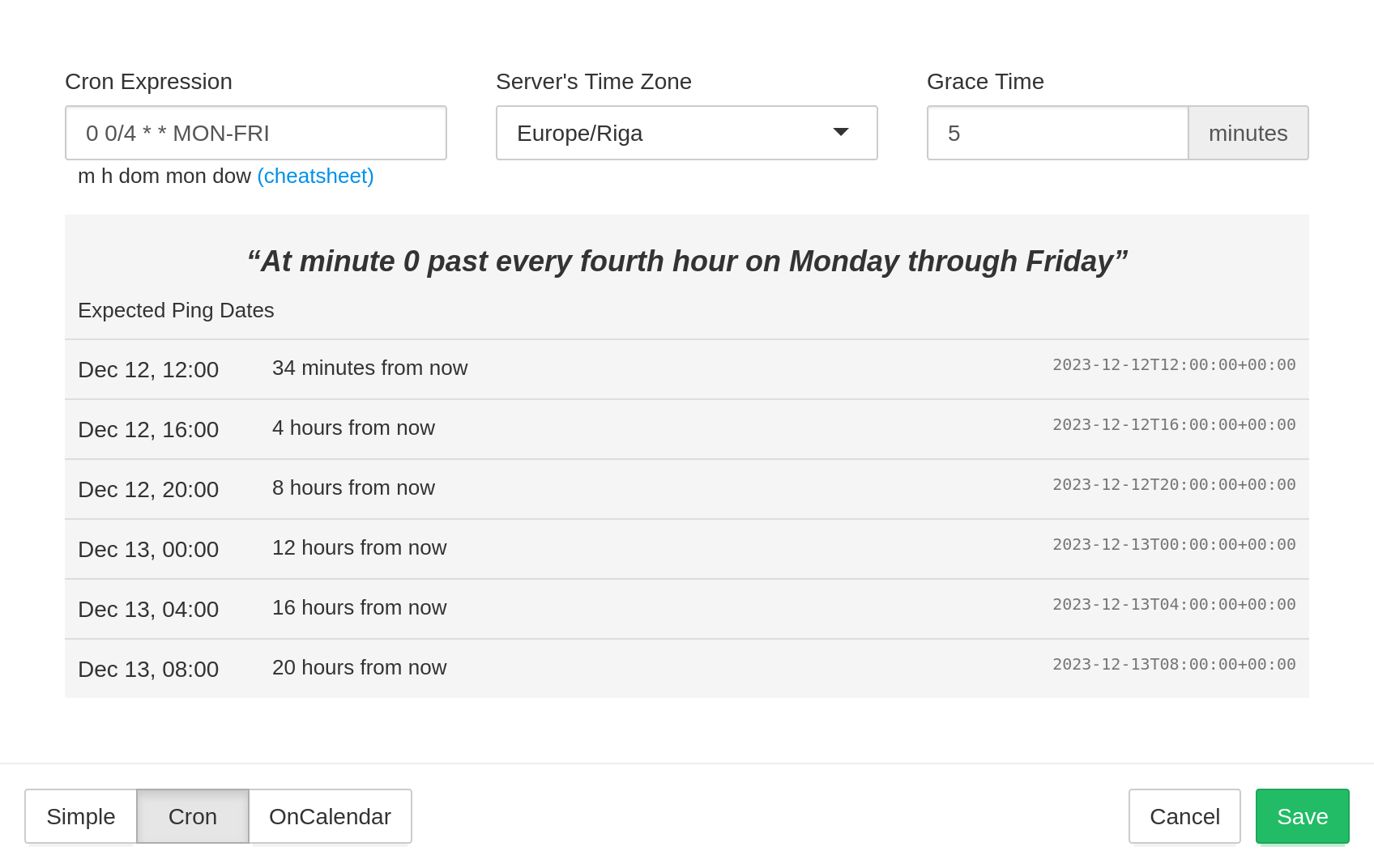
You will need to specify Cron Expression, Server's Time Zone, and Grace Time.
- Cron Expression is the cron expression you specified in the crontab.
- Server's Time Zone is the timezone of your server. The cron daemon typically uses the system's local time. If the machine does not use the UTC timezone, specify its timezone here.
- Grace Time, same as for simple schedules, is how long to wait before sending an alert for a late check.
OnCalendar Schedules
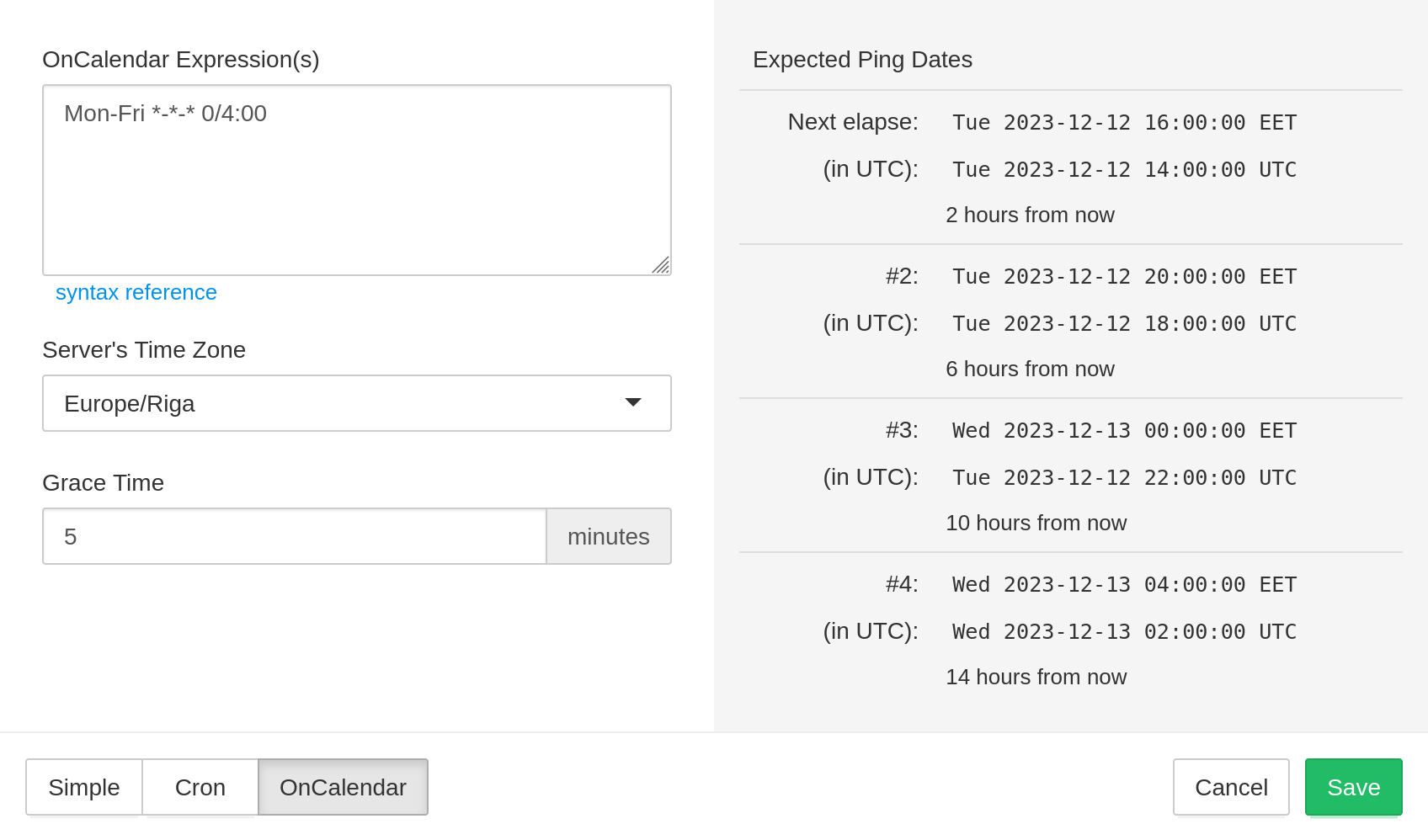
Use "OnCalendar" schedules to monitor systemd timers that use OnCalendar= schedules.
Same as with systemd timers, you can specify more than one OnCalendar expression
(separated with newlines, one schedule per line), and TheStrayCat will expect a ping
whenever any schedule matches.
See systemd.time(7) man page for complete OnCalendar syntax reference.
Filtering Rules
In the "Filtering Rules" dialog, you can control several advanced aspects of how TheStrayCat handles incoming pings for a particular check.
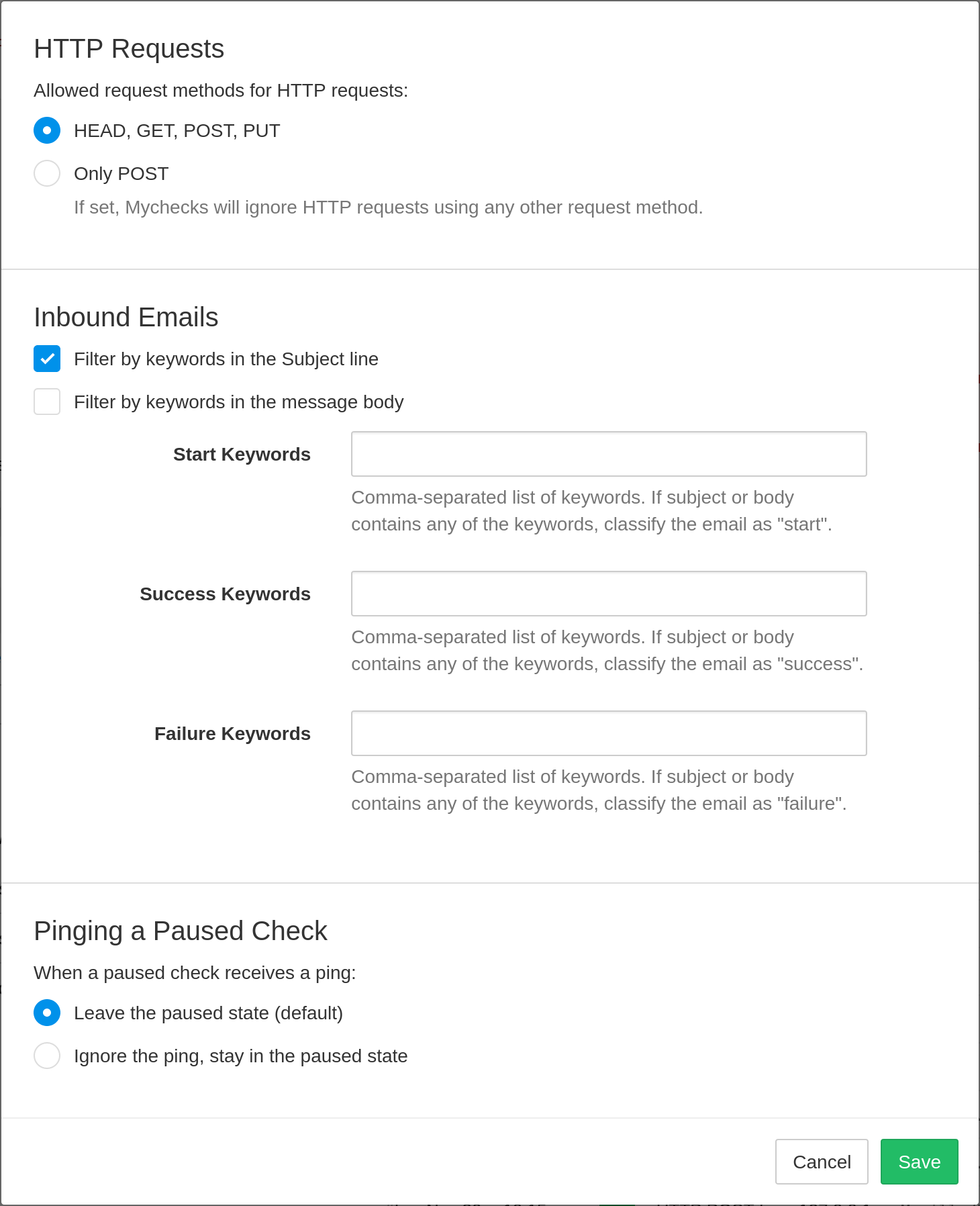
- Allowed HTTP Request Methods. You can require the ping requests to use HTTP POST. Use the "Only POST" option if you run into issues of preview bots hitting the ping URLs when you send them in email or post them in chat.
- Content Filtering. You can instruct TheStrayCat to look for specific keywords in the subject line or the message body of email pings, and in the HTTP request body of HTTP pings.
- Pinging a Paused Check. Normally, when you ping a paused check, it leaves the paused state and goes into the "up" state (or the "down" state in case of a failure signal). You can change this behavior by selecting the "Ignore the ping, stay in the paused state" option. With this option selected, the paused state becomes "sticky": TheStrayCat will ignore all incoming pings until you explicitly resume the check.
Content Filtering
If the Request body of HTTP requests option is checked, TheStrayCat will classify the HTTP pings as start, success, or failure signals by looking for keywords in the first 10 kB of the request body.
If either the Subject line of email messages or the Message body of email messages option is checked, TheStrayCat will classify email pings as start, success, or failure signals by looking for keywords in the subject line and/or message body. TheStrayCat supports HTML emails: when looking for keywords in message body, it checks both plain text and HTML versions of the email.
You can specify multiple keywords in each of the Start Keywords, Success Keywords, and Failure Keywords fields by separating them with commas. The keyword matching is case-sensitive (for example, "error" and "ERROR" are different keywords).
TheStrayCat looks for keywords in a specific order:
- It first looks for failure keywords. If any are found, it classifies the ping as a failure signal and does not look further.
- It then looks for success keywords. If any are found, it classifies the ping as a success signal and does not look further.
- It then looks for start keywords. If any are found, it classifies the ping as a start signal.
- Finally, if no matching keywords are found, TheStrayCat either ignores the ping or classifies it as a failure signal, depending on the If no keywords match configuration option. Ignored pings are shown in the event log with an "Ignored" label, but they do not affect check's status as they are neither "success" nor "failure" nor "start" signals.
Example use case: consider a backup cron job that sends an HTTP POST request every time it completes. If the job completes successfully, the HTTP request will contain text "Backup successful". If the job fails, the request body will contain an error message. The error messages can vary, and the complete list of all possible error messages is not known. To handle this scenario, you can use content filtering as follows:
- Enable the Request body of HTTP requests – enables content filtering for HTTP pings.
- In the Success keywords field enter "Backup successful" – if this string is found in the request body of a HTTP ping, TheStrayCat will classify the ping as a success signal.
- Select the If no keywords match: Classify the ping as failure option – TheStrayCat will classify all other HTTP requests as failure signals.
With these settings, TheStrayCat will classify a HTTP ping as a success signal if and only if the request body contains text "Backup successful". If the request body does not contain this string (or the request body is absent altogether), it will classify the ping as a failure signal.